Virtual Machines
Hello Everyone, in this post, we will be talking about “Virtual Machines”, which is basically a computer inside a computer.
But firstly, if you hadn’t noticed, the theme on the website is a different because i wanted to make changes to it, this is, personally, retro/coding styled, which i like, so i chose this one. But back to the main topic here.
As i was saying, Virtual Machines are emulations (you could say) of a OS like Windows or Ubuntu, they depend on the host (the computer that’s running the computer/emulator) specifications.
In my case, I have 2 VMs set up on Virtualbox, but i try not to add too much because i have 128GB of Storage, which it is not practical with the ISOs (explain that later) and the VHDs (also explaining that later).
One is a Windows XP VM, which i use for Escargot (formerly Nina and Escargot), but i barely use it. Another is a Windows 7 VM, which i am now locked out of it, i use it for CrossTalk (yeah).
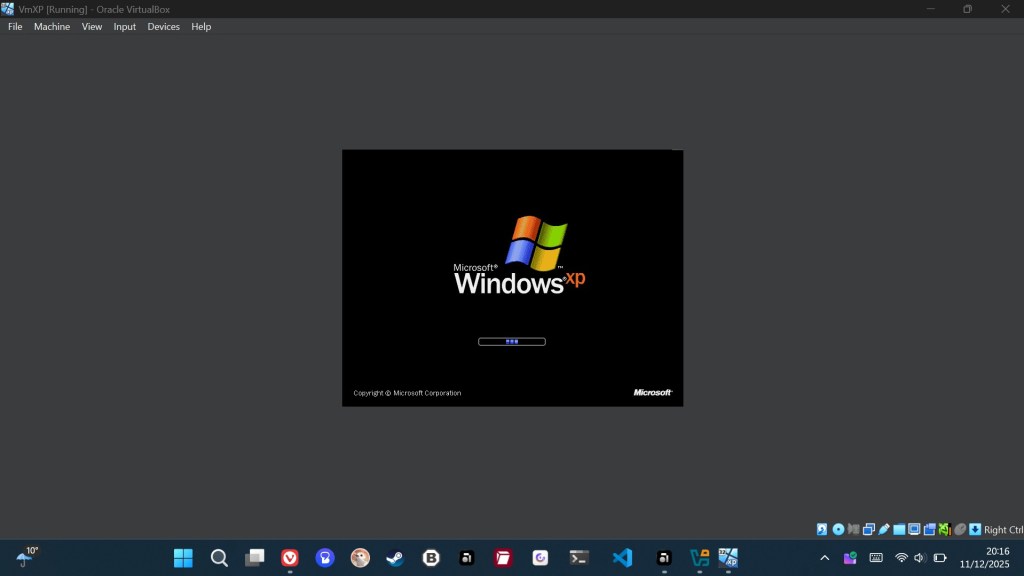
Windows XP Booting Up in a VM
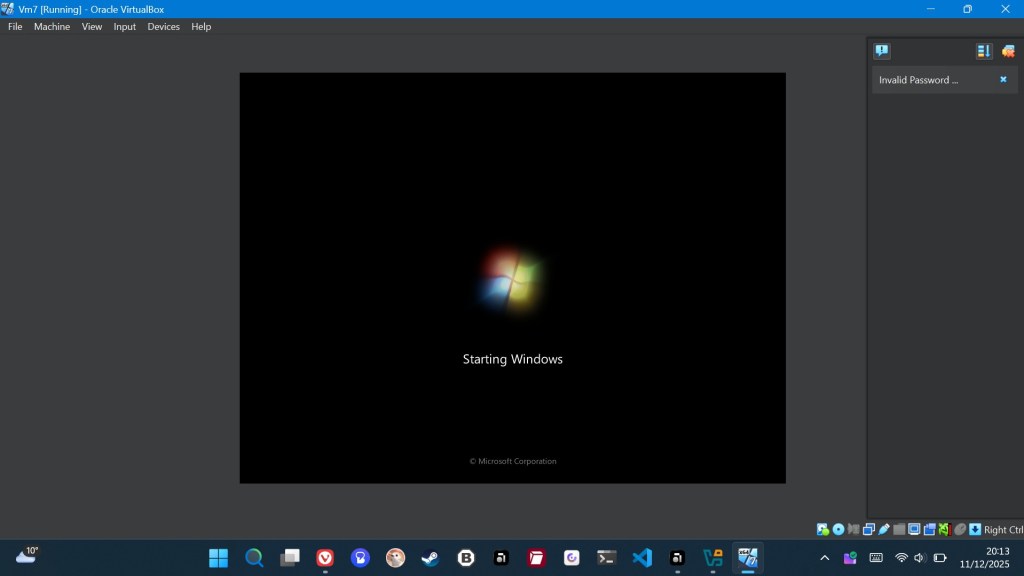
Windows 7 Booting Up in a VM
To be able to get a VM, some mobile emulators (QEMU for Jailbroken Apple Devices with AltStore) need you to download an “VHD” to the device so the app can process and hopefully, boot, but desktop VM Managers (Oracle VirtualBox, Hyper-V..) need you to insert an “ISO”, the VHD, you can create and adjust its size (like GB), then you install it onto the VHD.
Now, what’s all this “ISO” and “VHD” talk, well, ISOs are large files (up to GB) that have inside, more files, the computer then recognises it as a USB Device (maybe, but it stand outs as “it isn’t”), the files inside the ISO are files that the OS setup uses when installing that desired OS (eg language packs or basic features, but they can download off the network if connected, but language packs are still needed in the ISO, otherwise things are broken), it also has the Boot files, necessary to even boot the usb device you flash that on (you can “flash” the ISO onto a USB flash drive to then install it on another computer, VMs follow the same process but it uses the ISO directly).
VHDs are Virtual Hard disks (which you can create via Disk manager on windows, but that’s not the way VMs do it), VHDs are even bigger files (depending on what size you choose) that you install the ISO on, and that what makes an OS, but the VM depends on the Hard disk too, like emulators on mobile devices, otherwise, where will it boot from?, that’s like taking off the hard drive of a laptop and then booting it.
You can manage the VMs and everything by “VM Managers”, they are programs that give you a GUI interface to boot, shut down, delete hard disks, delete VMs and files and more, the one i can recommend for personal use is Oracle VirtualBox, which is free forever, but for business use, VMware is recommended (but you can use VMware as a personal user with a license key, which you have to buy)
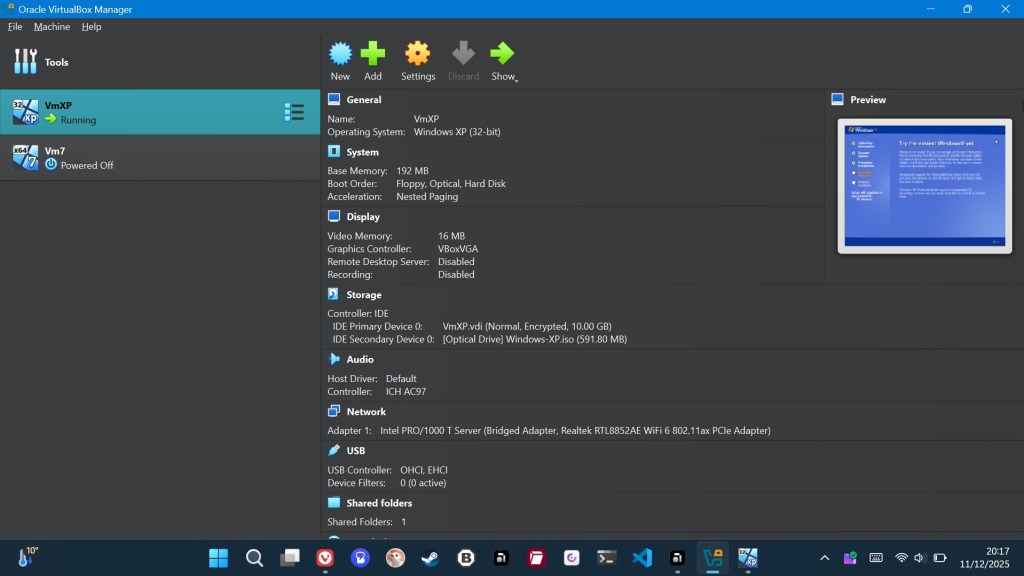
Oracle VirtualBox Manager on Windows
That hopefully sums up about Virtual Machines, but i will see you in the next post!